


FrogPilot is a bleeding-edge, highly customizable fork of openpilot for comma devices. It packs advanced features and cutting-edge experiments that often arrive long before official releases, and lets you tune how your car brakes, looks, sounds, speeds up, and steers. As a highly experimental and unofficial version of openpilot, FrogPilot should always be used with caution!
openpilot is free, open-source driver assistance software made by comma (docs). It runs on a comma device, which mounts on your windshield and connects to your car through a car harness.

On 308+ supported cars, it steers to keep you centered in your lane and, on many of them, manages your following distance and speed, while you stay alert and ready to take over.
FrogPilot is a fork of openpilot, meaning it's based on comma's openpilot and adds its own features and settings on top. It installs the same way and runs on the comma 3 and comma 3X.
See openpilot in action:
 |
 |
 |
Your comma device's Settings → FrogPilot menu holds these features and their options. Tuning Level, in that menu, controls how many settings you see, from Minimal through Standard and Advanced to Developer. The descriptions below note when a setting needs a higher tuning level or a supported car.
In the menu paths, Manage is the button beside the preceding setting. If the button is disabled, turn that setting on first. The Gas / Brake panel only appears when openpilot controls your car's gas and brake.

In "Chill Mode", acceleration and deceleration profiles let you choose how briskly your car speeds up and how firmly it slows down.

"Acceleration Profile" sets how briskly it speeds up, with "Eco", "Standard", "Sport" (the default), and "Sport+" to choose from. Each profile sets an upper limit on acceleration, but your car may accelerate more slowly. "Eco" keeps this limit below "Standard" at every speed.
"Deceleration Profile" starts out on "Eco", so with no car ahead it brakes at most half as hard as stock openpilot and slows gently for a lower set speed or speed limit. Switch it to "Eco+" and it just lets off the gas and coasts. Full braking returns for traffic, curves, or required stops. These profile limits do not apply in "Experimental Mode", including when "Conditional Experimental Mode" switches it on.
Adjust these settings under FrogPilot → Driving Controls → Gas / Brake → Longitudinal Tuning → Manage. "Acceleration Profile" is available at every tuning level, while "Deceleration Profile" requires the Advanced or Developer tuning level.

On stock openpilot, canceling cruise or tapping the brake turns everything off, steering included, often right when you're slowing for a tight bend or traffic. With "Always On Lateral", FrogPilot keeps steering for you the whole time your car's cruise control is switched on*.

Press cancel, tap the brake, or work the pedals yourself, and it keeps holding your lane. Resuming cruise brings speed control back. Whether you're easing off for a curve, tapping the brake to let someone merge, or crawling through stop-and-go traffic, the steering stays on, so you can stay relaxed instead of grabbing the wheel.
It's on by default. You can change it under FrogPilot → Driving Controls → Steering → Always On Lateral. To customize its behavior, choose the Standard tuning level or higher and tap Manage beside the toggle.
*On newer Genesis, Hyundai, and Kia cars that use the car's own cruise control and have a lane-keeping (LKAS) button on the steering wheel, that button or engaging openpilot turns it on instead of cruise control.

"Conditional Experimental Mode" switches between openpilot's two driving modes for you. It cruises in "Chill Mode" and hands over to "Experimental Mode" only while one of its triggers applies.

"Chill Mode" is predictable and smooth for steady cruising. "Experimental Mode" lets the driving model pick the speed itself, so it slows for curves and stops for red lights and stop signs, but it's less predictable on the open road. On stock openpilot, you switch between them by hand.
Out of the box, it hands over for stop signs, stop lights, and turns, including the turns on your route while "Navigate on openpilot" is guiding you. To choose its triggers, open FrogPilot → Driving Controls → Gas / Brake → Conditional Experimental Mode → Manage with your tuning level set to Standard or higher. The Advanced and Developer tuning levels show additional trigger settings. The unknown-speed-limit trigger is set separately under FrogPilot → Driving Controls → Gas / Brake → Speed Limit Controller → Manage → Fallback Speed → Experimental Mode.
Once no trigger applies, it drops back to "Chill Mode". You get the calm of "Chill Mode" on the highway and the stop-for-lights smarts of "Experimental Mode" around town, with no button presses.
Stay attentive. "Experimental Mode" is an alpha feature, and mistakes are expected!

In "Chill Mode", stock openpilot doesn't slow down for curves ahead. FrogPilot's "Curve Speed Controller" sees curves coming and slows down on its own, early and smoothly, so you're not braking hard into an off-ramp or a twisty back road.

"Adaptive", the default, starts like "Standard" and learns your pace from the curves you take yourself with cruise control off. "Gentle" takes curves at a calm, unhurried pace, "Standard" is a little brisker, and "Sport" goes up to what your car's steering allows. None goes above your set speed or past what your car's steering allows.
Turn it on under FrogPilot → Driving Controls → Gas / Brake → Curve Speed Controller with your tuning level set to Standard or higher. To choose a different "Curve Speed Profile", set your tuning level to Advanced or Developer, then tap Manage beside "Curve Speed Controller".

Stock openpilot's "Aggressive", "Standard", and "Relaxed" profiles are fixed. Switch on "Driving Personalities" to tune how much space each one leaves behind the car ahead, so "Aggressive" keeps up with traffic the way you like and "Relaxed" really feels relaxed.

With the default settings at 65 mph, "Aggressive" leaves the least room, "Standard" a little more, and "Relaxed" the most. Following distance is measured in seconds, so the gap grows as you go faster.
You can also tune how smoothly each one brakes and speeds up. With the default button assignment, you switch profiles with a tap of the following distance button on your steering wheel. On GM cars with adaptive cruise, the first tap opens the menu. Tap again within 3.5 seconds to change the profile.
To adjust a profile, set your tuning level to Advanced or Developer, then open FrogPilot → Driving Controls → Gas / Brake → Driving Personalities → Manage and tap Manage beside Aggressive, Standard, or Relaxed. Following Distance is available at both the Advanced and Developer tuning levels. The other five settings below require Developer. Each profile has its own values. The percentages use stock openpilot's "Standard" profile as the 100% reference. For the smoothness and response ones, a higher value feels gentler and a lower one quicker but more abrupt.
| Setting | Range | What it changes |
|---|---|---|
| Acceleration Smoothness | 25–200% | How quickly it adjusts its acceleration while speeding up or holding speed |
| Braking Smoothness | 25–200% | How quickly it adjusts its braking while slowing down |
| Following Distance | 1.00–3.00 seconds | How much room it leaves behind the car ahead. It's measured in seconds, so the gap grows as you go faster |
| Safety Gap Bias | 25–200% | How strongly it avoids getting too close to the car ahead. Higher means it brakes earlier and more firmly to keep its space |
| Slowdown Response | 25–200% | How gradually it eases into and out of slowing down |
| Speed-Up Response | 25–200% | How gradually it eases into and out of speeding up |
Stuck in stop-and-go? Hold the following distance button for 2.5 seconds to turn on "Traffic Mode", which keeps tighter gaps and reacts sooner, so you're not leaving room for every car to cut in. Tighter gaps mean less cushion, so stay ready to brake.

Some moments are easy to miss. "FrogPilot Alerts" adds chimes stock openpilot doesn't have, plus a louder version of one it does.
"Green Light Alert" works when you're stopped at a light with no car ahead.

It chimes when the driving model predicts it's time to move, rather than reading the light's color, so it may chime before the light changes.
"Lead Departing Alert" chimes after the car in front of you pulls away.

It chimes while you're still stopped. Treat both of these as a nudge to check the light and road before moving.
"Louder Blind Spot Alert" isn't a new alert.

openpilot already chimes "Car Detected in Blindspot" when you signal for a lane change while it's steering and a car is beside you; this swaps that quiet chime for openpilot's louder warning chime. It needs a car with blind-spot monitoring, "Lane Changes" turned on, and at least your "Minimum Lane Change Speed".
"Speed Limit Changed Alert" chimes whenever the speed limit FrogPilot is reading changes, such as entering a school zone or coming off the highway.

It appears when "Show Speed Limits" or "Speed Limit Filler" is on, or when "Speed Limit Controller" is on and openpilot controls the gas and brake.
Turn them on under FrogPilot → Alerts and Sounds → Manage → FrogPilot Alerts → Manage.
FrogPilot works the gas and brake more like a careful driver, out of the box. The comparisons below are simulations run with the real openpilot and FrogPilot code.

With "Human-Like Following", FrogPilot plans around where the driving model expects the car ahead to go, so when traffic starts to slow, it lets off the gas sooner and brakes more gently. In these simulated comparisons, FrogPilot's hardest braking is 22% softer than stock openpilot's, and it gets moving 1.3 seconds sooner when the car ahead pulls away from a stop.
After 20 seconds in the braking comparison, FrogPilot has 67 ft of room to the car ahead and stock openpilot has 48 ft. After 10 seconds in the pull-away comparison, FrogPilot is 63 ft behind and stock openpilot is 90 ft behind.
In "Chill Mode", "Human-Like Acceleration" eases into your set speed instead of rushing up to it.

The lower your set speed, the gentler it pulls away. In the simulation with nobody ahead and a set speed of 20 mph, FrogPilot's hardest push is 19% softer than stock openpilot's. On cars with a fixed launch push, it also replaces that push with openpilot's planned acceleration in either driving mode.
Adjust "Human-Like Acceleration" and "Human-Like Following" under FrogPilot → Driving Controls → Gas / Brake → Longitudinal Tuning → Manage with your tuning level set to Advanced or Developer.

The driving model is the AI at the heart of openpilot. It decides how to slow down, speed up, and steer, so it shapes how every drive feels.

Stock openpilot runs the model comma ships with each release. FrogPilot's "Model Manager" lets you choose from a range of driving models instead. Open FrogPilot → Driving Controls → Driving Model to download the ones you want and switch between them with "Select Driving Model". New models download on their own as they're released.
Not sure which one you'll like? Turn on the "Model Randomizer".

It picks a different model at the start of every drive, asks how it went after drives longer than 15 minutes, and saves your ratings under "Manage Model Ratings" so you can compare them. Add models you don't like to "Manage Model Blacklist" so the randomizer never picks them.

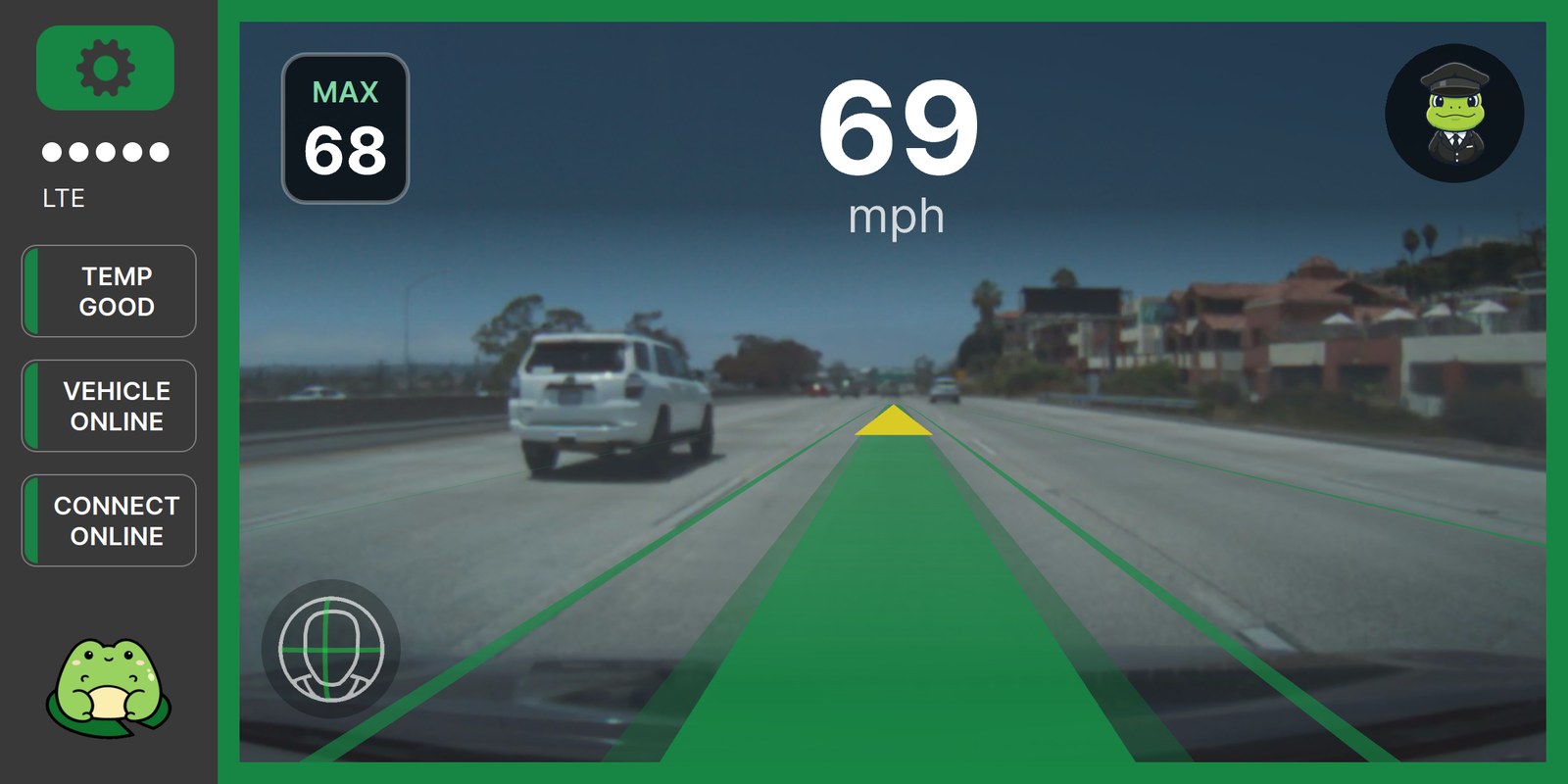
Matching your set speed to every new speed limit means constant fiddling with the cruise buttons, and it's easy to miss a sign. With "Speed Limit Controller", you set your cruise speed once and FrogPilot follows the posted limit plus an offset you choose, but never goes above your set speed.

In the example, the downloaded maps are first in your source priority order, so their 45 mph limit wins over the 40 mph reported by the dashboard and camera. Adding your 5 mph offset gives 50 mph, still capped by your set speed.
It reads speed limit signs with the road camera and, on supported Ford, Genesis, Hyundai, Kia, Lexus, and Toyota models, your car's dashboard. It also uses maps from "OpenStreetMap" and the speed limits along your "Navigate on openpilot" route, and, with your own "Mapbox" key, fills gaps with Mapbox's online data. To download maps, open FrogPilot → Maps and Navigation → Map Data and pick your countries or states in Map Sources. Go back, then tap Download beside Download Maps while parked and online. They update automatically every month. Add your Public Mapbox Key under FrogPilot → Maps and Navigation → Navigation to make Use Mapbox as Fallback available.
"Speed Limit Filler" fixes roads where your downloaded maps have no limit or the wrong one. It's on by default, under FrogPilot → Maps and Navigation → Navigation. It learns the limit from the signs the camera reads, saves it for that road and direction, and uses it in place of the map's limit the next time you drive there, until the map matches the signs. It also keeps a cropped photo of the sign each learned limit came from. Roads with conditional limits, such as ones that change with the time of day or the weather, are skipped. With "Share FrogPilot Data" on, the learned limits and their sign photos are sent to FrogPilot while parked on unmetered Wi-Fi or Ethernet and used to improve speed limits for everyone using FrogPilot.
To choose how it handles limits, open FrogPilot → Driving Controls → Gas / Brake → Speed Limit Controller → Manage. The settings below note any submenus and tuning-level requirements.
| Setting | What it does |
|---|---|
| "Confirm New Speed Limits" Under Quality of Life → Manage |
Asks before switching to a new limit, keeping the old one until you accept. Choose whether to confirm lower limits, higher limits, or both. It won't ask for confirmation until you select an option. |
| "Fallback Speed" | What it does where no limit can be found. You choose between using your set speed, keeping the last limit, and letting "Experimental Mode" pick the speed. Out of the box it keeps the last limit, even one from an earlier drive. Requires the Standard tuning level or higher |
| "Higher Limit Lookahead Time" and "Lower Limit Lookahead Time" Under Quality of Life → Manage |
Lets it start speeding up or slowing down for a new limit before you reach it, instead of right where the limit changes. Only works with limits from your downloaded maps. Requires the Advanced tuning level or higher |
| "Match Speed Limit on Engage" Under Quality of Life → Manage |
When you engage without resuming an earlier set speed, it starts at the speed limit plus your offset, not your current speed. It's only offered on cars where openpilot sets the cruise speed itself. Requires the Standard tuning level or higher |
| "Override Speed" | What happens after you press the gas past the limit. Out of the box it keeps the faster speed you reached, even if the limit drops, until you disengage or the limit rises to meet it. Requires the Standard tuning level or higher |
| "Speed Limit Offsets" Tap Manage beside it |
How far over or under the posted limit you drive, with a separate amount for each range of limits. Out of the box it drives 5 mph over on roads posted under 55 mph and 10 mph over on faster ones |
| "Speed Limit Source Priority" | Which source it goes by when more than one has a limit. You choose the first in the order you set, or always the highest or lowest limit reported. Requires the Advanced tuning level or higher |
| "Use Mapbox as Fallback" Under Quality of Life → Manage |
When none of your chosen sources has a limit, it sends your location to Mapbox to look one up online. Needs your own Mapbox key and an internet connection. Requires the Standard tuning level or higher |
Speed limits are only as accurate as the available speed limit data. Always stay attentive and adjust your speed when necessary!

Make your screen yours. With "Custom Themes", download theme packs and mix and match their color schemes, icon packs, sound packs, steering wheel icons, and turn signal animations. To choose your packs, open FrogPilot → Theme and Appearance → Theme and tap Manage beside "Custom Themes". Turn on "Holiday Themes" in the Theme menu and FrogPilot dresses up on its own for thirteen holidays through the year. Build your own theme with the "Theme Maker" in The Pond and share it with the community. Open The Pond in a browser on the same Wi-Fi using the address shown under FrogPilot → Maps and Navigation → Navigation → Manage Your Settings At. For extra fun, the Theme menu also offers the Mario Kart–style "Rainbow Path" and "Random Events" for the occasional joke alert when your tuning level is Standard or higher. Neither one changes how it drives!
FrogPilot is driver assistance, not self-driving. Stay attentive and ready to take over. "Conditional Experimental Mode", "Curve Speed Controller", driving personality tuning, Human-Like Driving, "Speed Limit Controller", and "Traffic Mode" only work on cars where openpilot controls the gas and brake.
And lots more!
FrogPilot keeps stock openpilot's core features and adds:
| Feature | openpilot | FrogPilot |
|---|---|---|
| Set your own volume for each alert ("Alert Volumes") | ❌ | ✅ |
| Turns the lane beside you red on screen when a vehicle is in your blind spot, not just when you signal ("Blind Spot Path")* | ❌ | ✅ |
| Saves the last minute of the driving screen as a video with one tap, or records it whenever you like ("Capture Recent Footage", "Screen Recorder") | ❌ | ✅ |
| Change colors, icons, sounds, and turn signals, with automatic holiday themes ("Custom Themes", "Holiday Themes") | ❌ | ✅ |
| Chimes when the model predicts it's time to move, which can be before the light changes, or when the car in front pulls away ("Green Light Alert", "Lead Departing Alert") | ❌ | ✅ |
| Shows the posted speed limit on screen from maps, road signs, or your car's dashboard, even on cars where openpilot doesn't control the gas and brake ("Show Speed Limits") | ❌ | ✅ |
| Chimes when the speed limit changes ("Speed Limit Changed Alert") | ❌ | ✅ |
| Turns the screen off while driving and wakes it for alerts ("Standby Mode") | ❌ | ✅ |
Settings paths and tuning levels
- Alert Volumes: FrogPilot → Alerts and Sounds → Manage → Alert Volumes → Manage. Requires the Advanced tuning level or higher.
- Blind Spot Path: FrogPilot → Theme and Appearance → Appearance → Driving Screen Widgets → Manage. Requires the Standard tuning level or higher and a car with blind spot monitoring.
- Capture Recent Footage, Screen Recorder, and Standby Mode: FrogPilot → System Settings → Device Controls → Screen Settings → Manage. Capture Recent Footage and Standby Mode require the Standard tuning level or higher, while Screen Recorder requires Advanced or higher.
- Custom Themes and Holiday Themes: FrogPilot → Theme and Appearance → Theme. Tap Manage beside Custom Themes to choose its packs.
- Green Light Alert, Lead Departing Alert, Louder Blind Spot Alert, and Speed Limit Changed Alert: FrogPilot → Alerts and Sounds → Manage → FrogPilot Alerts → Manage. The speed-limit alert appears when Show Speed Limits or Speed Limit Filler is on, or when Speed Limit Controller is on and openpilot controls the gas and brake.
- Show Speed Limits: FrogPilot → Theme and Appearance → Appearance → Navigation Widgets → Manage. This toggle is hidden when Speed Limit Controller is on and openpilot controls the gas and brake, because the controller already displays the limit. Requires the Standard tuning level or higher.
| Feature | openpilot | FrogPilot |
|---|---|---|
| Automatic door locks on Lexus and Toyota cars, locking when you shift into gear and unlocking in park ("Automatically Lock/Unlock Doors")* | ❌ | ✅ |
| Brakes earlier and more gently behind other cars and, in "Chill Mode", brakes half as hard with no car ahead and eases into your set speed, all on by default ("Deceleration Profile", "Human-Like Acceleration", "Human-Like Following")† | ❌ | ✅ |
| Tune each driving personality's acceleration, braking, and following distance ("Driving Personalities")† | ❌ | ✅ |
| Set how much farther back it stops behind the car ahead, up to 10 extra feet ("Increase Stopped Distance by:")† | ❌ | ✅ |
| More steering strength* | ❌ | ✅ |
| Smoother steering, on by default, from a model trained on cars like yours or, where there isn't one, a lighter version that anticipates curves ("Neural Network Feedforward (NNFF)", "Neural Network Feedforward (NNFF) Lite")* | ❌ | ✅ |
| Stop-and-go on cars whose factory cruise control can't do it* | ❌ | ✅ |
| Set extra following distance and gentler acceleration and cornering for low visibility, rain, and snow ("Weather Condition Offsets")† | ❌ | ✅ |
Settings paths and tuning levels
- Automatically Lock/Unlock Doors: FrogPilot → Vehicle Settings → Vehicle Settings → Toyota/Lexus Settings → Manage.
- Deceleration Profile, Human-Like Acceleration, and Human-Like Following: FrogPilot → Driving Controls → Gas / Brake → Longitudinal Tuning → Manage. Requires the Advanced tuning level or higher.
- Driving Personalities: FrogPilot → Driving Controls → Gas / Brake → Driving Personalities → Manage (requires the Advanced tuning level or higher), then Manage beside Aggressive, Standard, or Relaxed. Following Distance requires the Advanced tuning level or higher, while the other profile controls require Developer.
- Increase Stopped Distance by: FrogPilot → Driving Controls → Gas / Brake → Quality of Life → Manage. Requires the Standard tuning level or higher.
- Neural Network Feedforward (NNFF) and Neural Network Feedforward (NNFF) Lite: FrogPilot → Driving Controls → Steering → Lateral Tuning → Manage. Which one appears depends on your car and whether full NNFF is on. Requires the Advanced tuning level or higher.
- Stop-and-go: FrogPilot → Vehicle Settings → Vehicle Settings, then Manage beside your brand's settings. Look for Stop-and-Go Hack on supported Chevrolet Volt, Toyota, and Lexus cars, or Stop and Go on supported Subarus. Requires the Advanced tuning level or higher.
- Weather Condition Offsets: FrogPilot → Driving Controls → Gas / Brake → Quality of Life → Manage → Weather Condition Offsets → Manage, then Manage beside Low Visibility, Rain, Rainstorms, or Snow. Requires the Advanced tuning level or higher.
| Feature | openpilot | FrogPilot |
|---|---|---|
| Keeps steering when you brake or cancel cruise ("Always On Lateral") | ❌ | ✅ |
| Changes lanes with just the turn signal, no wheel nudge ("Automatic Lane Changes") | ❌ | ✅ |
| Switches between "Chill Mode" and "Experimental Mode" on its own ("Conditional Experimental Mode")† | ❌ | ✅ |
| Takes curves at the speed you like, learning from how you drive them ("Curve Speed Controller")† | ❌ | ✅ |
| Choose what the following distance button does on a tap, a hold, and a long hold, and what the LKAS button does, such as toggling "Experimental Mode" or "Traffic Mode"†, or pausing steering ("Distance Button", "LKAS Button") | ❌ | ✅ |
| Comes to a stop in "Chill Mode" when the driving model expects to stop and there's no car ahead (Force Stop at "Detected" Stop Lights/Signs)† | ❌ | ✅ |
| Pauses steering below a speed you choose, either always or only while your turn signal is on ("Pause Steering Below") | ❌ | ✅ |
| Follows posted speed limits from maps, road signs, or your car's dashboard ("Speed Limit Controller")† | ❌ | ✅ |
Settings paths and tuning levels
- Always On Lateral: FrogPilot → Driving Controls → Steering. Tap Manage beside it for its options (requires the Standard tuning level or higher).
- Automatic Lane Changes: FrogPilot → Driving Controls → Steering → Lane Changes → Manage.
- Conditional Experimental Mode, Curve Speed Controller, and Speed Limit Controller: FrogPilot → Driving Controls → Gas / Brake. Tap Manage beside the feature you want to adjust. CEM and CSC require the Standard tuning level or higher. SLC is available at every tuning level, with more options at higher levels.
- Distance Button and LKAS Button: FrogPilot → Vehicle Settings → Wheel Buttons. Requires the Advanced tuning level or higher.
- Force Stop at "Detected" Stop Lights/Signs: FrogPilot → Driving Controls → Gas / Brake → Quality of Life → Manage. Requires the Advanced tuning level or higher.
- Pause Steering Below: FrogPilot → Driving Controls → Steering → Quality of Life → Manage. Requires the Standard tuning level or higher.
| Feature | openpilot | FrogPilot |
|---|---|---|
| Fine-tune steering by hand ("Advanced Lateral Tuning") | ❌ | ✅ |
| Fine-tune gas and brake by hand ("Advanced Longitudinal Tuning")† | ❌ | ✅ |
| Runs on the older comma 3 | ❌ | ✅ |
| Works with add-on hardware some owners install (comma Pedal, SDSU, and ZSS)* | ❌ | ✅ |
| Automatic backups of your FrogPilot install and settings, ready to restore ("FrogPilot Backups", "Settings Backups") | ❌ | ✅ |
| High-quality recordings when uploads are off ("High-Quality Recording") | ❌ | ✅ |
| No forced internet check-ins (stock openpilot won't start after 14 days without checking for updates) | ❌ | ✅ |
| Choose your driving model ("Select Driving Model"), or let the "Model Randomizer" pick one and rate it after your drives | ❌ | ✅ |
| Shows only as many settings as you want, from a short "Minimal" list to every option under "Developer", and starts at a level that fits how much you've driven with openpilot ("Tuning Level") | ❌ | ✅ |
Settings paths and tuning levels
- Advanced Lateral Tuning: FrogPilot → Driving Controls → Steering → Advanced Lateral Tuning → Manage. Requires the Developer tuning level.
- Advanced Longitudinal Tuning: FrogPilot → Driving Controls → Gas / Brake → Advanced Longitudinal Tuning → Manage. Requires the Developer tuning level.
- comma Pedal, SDSU, and ZSS: supported hardware is detected automatically. Check FrogPilot → Vehicle Settings → Vehicle Settings → Vehicle Info → View → 3rd Party Hardware Detected. This shows which hardware was detected and isn't a toggle.
- FrogPilot Backups and Settings Backups: FrogPilot → System Settings → Data.
- High-Quality Recording: FrogPilot → System Settings → Device Controls → Device Settings → Manage. It appears when Disable Uploads is on and Disable Onroad Only is off. These options are hidden on FrogPilot-Development and FrogPilot-Vetting. Requires the Advanced tuning level or higher where available.
- Select Driving Model and Model Randomizer: FrogPilot → Driving Controls → Driving Model.
- Tuning Level: directly under FrogPilot → Tuning Level.
*Select vehicles only
†Cars where openpilot controls the gas and brake
And much, much more!
You need three things:
- A supported car. Check the list of 308+ supported cars. Its ACC (adaptive cruise control) column shows who controls the gas and brake. On cars marked openpilot, openpilot does. On cars marked openpilot available, the experimental option is Settings → Toggles → openpilot Longitudinal Control (Alpha). On cars marked Stock, your car's own cruise control does, and openpilot steers.
- A comma device. FrogPilot runs on the comma 3 and comma 3X.
- A car harness for your car, which connects the device to it. You can buy one at comma.ai/shop/car-harness.
Then:
- Connect the harness and mount the device by following comma's setup guide (written for the comma four).
- When the device asks what software to install, choose Custom Software and enter the URL below.
FrogPilot.download - Go for a drive!
To install a different branch, enter its install URL instead (see below).
A branch is a version of FrogPilot you can install. They differ in how new and how tested they are.

FrogPilot's releases follow comma's openpilot release cycle. FrogPilot-Testing gets new features as soon as they're finished, and those features move up to FrogPilot-Staging.
| Branch | Install URL | Description | Recommended For |
|---|---|---|---|
| FrogPilot | FrogPilot.download | The release branch. Updated the Saturday after comma's official openpilot release, once it's been through Staging. | Everyone |
| FrogPilot‑Staging | staging.FrogPilot.download | FrogPilot on comma's upcoming openpilot release, updated as soon as comma starts testing it. Usually gets one to three weeks of testing before it becomes the release. | Early Adopters |
| FrogPilot‑Testing | testing.FrogPilot.download | The newest features, as soon as they're finished. The least tested, so expect bugs! | Advanced Testers |
| MAKE‑PRS‑HERE | No :) | Workspace for pull requests. Do not install! | Contributors |
FrogPilot is driver assistance (adaptive cruise control and lane centering), not self-driving. The driver must stay alert and be ready to take over at all times.
openpilot's safety model is described in comma's SAFETY.md. FrogPilot modifies openpilot's safety code, for example to allow higher steering limits on some cars, and to let "Always On Lateral" keep steering after you press the brake.
Is FrogPilot free?
Yes. FrogPilot is free and open source under the MIT license. The hardware isn't. You'll need a comma device and a car harness for your car.
Does it drive the car by itself?
No. It steers for you, and on many cars it also brakes and speeds up, but you're always the driver. Keep your eyes on the road and be ready to take over. The device's driver camera checks that you're paying attention and alerts you if you aren't.
Will it work with my car?
Check the supported cars list. Some FrogPilot features also need openpilot to control your car's gas and brake. They're marked with † in the tables above.
Which branch should I install?
If you're new, start with the main FrogPilot branch. It's the most tested. The other branches get new features sooner, with more bugs.
Can I switch branches or go back to stock openpilot later?
Yes. FrogPilot is software on your comma device, so you can reinstall it with another branch's install URL, or reinstall stock openpilot on a device it supports, whenever you like.
What data does it share?
Like stock openpilot, it uploads your drives to comma by default (or to Konik, a separate company, on builds that aren't fully tested yet). FrogPilot's own data sharing is off until you agree to it. Crash reports, device registration, and a check-in each time the device starts and after each drive are always on. The User Data section at the bottom has the details.
If you run into a bug or have an idea for a new feature, please post it on the FrogPilot Discord! Feedback helps improve FrogPilot and create a better experience for everyone!
To report a bug, please post it in #bug-reports.
To request a feature, please post it in #feature-requests.
Please include which branch you're on, your car, and your device, and as much detail as possible! Log files, photos, and videos that show the issue or idea are very helpful!
I'll do my best to respond promptly, but not every request can be addressed right away. Your feedback is always appreciated and helps make FrogPilot the best it can be!
Pull requests are welcome! Please open them against the MAKE-PRS-HERE branch, since pull requests to any other branch are closed automatically.
GitHub Issues are turned off for this repository, so please post bug reports and feature requests in the FrogPilot Discord channels above.
MIT Licensed
FrogPilot, like openpilot, is released under the MIT license. Some parts of the software are released under other licenses as specified.
Any user of this software shall indemnify and hold harmless Comma.ai, Inc. and its directors, officers, employees, agents, stockholders, affiliates, subcontractors, and customers from and against all allegations, claims, actions, suits, demands, damages, liabilities, obligations, losses, settlements, judgments, costs, and expenses (including without limitation attorneys’ fees and costs) which arise out of, relate to, or result from any use of this software by user.
THIS IS ALPHA QUALITY SOFTWARE FOR RESEARCH PURPOSES ONLY. THIS IS NOT A PRODUCT. YOU ARE RESPONSIBLE FOR COMPLYING WITH LOCAL LAWS AND REGULATIONS. NO WARRANTY EXPRESSED OR IMPLIED.
User Data
Your comma device sends data to comma or Konik, FrogPilot, and Sentry.
By default, FrogPilot uploads driving data to comma's servers, like stock openpilot. You can access your data through comma connect. Builds that aren't fully tested yet, such as FrogPilot-Testing, upload to the servers of Konik, a separate company, instead. They turn on the "Use Konik Server" setting, lock it on, and register your device with Konik. You can also turn on "Use Konik Server" yourself under FrogPilot → System Settings → Device Controls → Device Settings → Manage (requires the Advanced tuning level or higher). You can view those drives at stable.konik.ai.
openpilot logs the road-facing cameras, CAN, GPS, IMU, magnetometer, thermal sensors, crashes, and operating system logs. Under Settings → Toggles, Record and Upload Driver Camera controls driver-facing camera recording, and the driver-facing camera is only logged if that toggle is on. The microphone isn't recorded. It also logs the ambient sound level in decibels, which is a loudness reading, not a recording.
If you agree, FrogPilot also sends the following data to its servers.
- Filtered driving logs have no video, GPS coordinates are cleared, and the VIN (your car's ID number) is removed. Your car's raw CAN data (the messages its computers send each other) is kept and, on some cars, includes GPS or the VIN.
- About 15 seconds of road camera video when a supported car's dashboard shows a new speed limit, when the speed limit sign reader sees a sign it isn't sure of, and for some of the limits it reads, linked to your device. No GPS coordinates or recording time are attached, but the video is uploaded as recorded and can show license plates, people, and identifiable places.
- Speed limits learned by "Speed Limit Filler", when it's on, each with the map ID of the road, the direction it applies to, the GPS location and heading where the sign was seen, the date, and how far the car drove with it, linked to your device, including limits learned before you agreed. Each one also includes a cropped photo of the sign it was read from, with the GPS location, heading, and time it was taken, and the photo can show part of the road around the sign. Roads where the sign matched your map's limit are sent too, with the limit and the date, to measure how accurate the sign reader is. The road IDs and locations show where the car has been driven. They're used to improve speed limits for everyone using FrogPilot.
- usage statistics, which are your car's details, your drive totals, your FrogPilot settings, and your nearest city, state, and country, linked to your device.
FrogPilot asks during setup whether you agree, and you can change your answer later with "Share FrogPilot Data" under Settings → Software. Drives recorded before you agreed are never uploaded to FrogPilot. Driving logs, road camera clips, and learned speed limits only upload over Ethernet or Wi-Fi while your car is off.
FrogPilot also registers your device with FrogPilot's server (when it first starts and after updates), checks in each time the device starts and after each drive to count active devices (with nothing in it unless you agreed to share), and sends crash reports to Sentry, a crash-reporting service. No setting turns these off. When you turn on "Weather Condition Offsets" under FrogPilot → Driving Controls → Gas / Brake → Quality of Life → Manage (requires the Advanced tuning level or higher), it sends your location to FrogPilot's server to check the weather. To add your own OpenWeatherMap key, open Weather Condition Offsets → Manage → Set Your Own Key → Add. Once you've added your key, FrogPilot tries OpenWeatherMap first.
When you send a bug report with "Report a Bug or an Issue" under FrogPilot → System Settings → Utilities, or with "Report an Issue" in The Pond, FrogPilot's server gets what went wrong, your Discord name, your settings, and the end of the most recent error log. In The Pond, you can also pick the drive it happened on, and only then are that drive's logs sent with the report, as recorded. They include exact locations and times, your car's data and VIN, driver monitoring, your device's settings and IDs, and road snapshots about every 5 seconds, and FrogPilot keeps them until they're deleted. "Quick report" sends the drive's logs from start to finish. "Full details" also sends the full logs and low-res road video for the minute you mark, and the video can show license plates and people. These logs start uploading right away on any connection, and on a metered connection The Pond shows their size and asks first.
"Disable Uploads" is under FrogPilot → System Settings → Device Controls → Device Settings → Manage. It requires the Advanced tuning level or higher, selected under FrogPilot → Tuning Level, and is hidden on FrogPilot-Development and FrogPilot-Vetting.
- It stops the automatic uploads of your drives to comma or Konik, and FrogPilot's driving log and learned speed limit uploads. Its "Disable Onroad Only" button on the same row only pauses the uploads to comma or Konik while you drive and lets them finish once you park.
- It doesn't stop crash reports, bug reports you send, device registration, the usage statistics, or the device's connection to comma or Konik, which still sends system logs and uploads files when the server requests them.
When you first set up FrogPilot, it asks you to accept comma's terms. Data sent to comma is covered by comma's Terms & Privacy, which say comma owns all data conveyed to it through openpilot. Konik's terms are at konik.ai/privacy.